
PSIRA Login: Access your PSiRA Profile Easily
Looking for the official PSiRA Login process? This guide explains how to securely access your PSiRA account as a security officer, security business, or training provider. You’ll learn how to login, recover a forgotten password, complete OTP verification, troubleshoot common login issues, and access essential PSiRA online services quickly through the official portal.
Features Available After PSiRA Login Profile
- Update Your Personal Information: Change your contact details, address, ID information, or registered mobile number whenever needed.
- Check Your Registration Status: See whether your PSiRA registration is active, pending, expired, or inactive.
- View Your Certificate Details: Check your registration certificate and its expiry date.
- Download Your Certificate: Save a PDF copy of your PSiRA registration certificate for future use.
- See Your Security Grade: View your current security grade, such as Grade A, B, C, D, or E.
- Access Your Training Records: Review completed training courses and download available certificates.
- Renew Your Registration Online: Submit your renewal application, upload required documents, and complete payment online.
- Claim Your Online Profile: Connect your existing PSiRA record to your online account using your ID number or mobile number.
- Book Appointments Online: Schedule appointments for services like registration or fingerprint capture.
- Stay Updated: Receive important notifications about your account, industry regulations, and compliance updates.
- Manage Your Security Business(Business Accounts Only): Access company registration details, compliance documents, and verified business certificates.
PSiRA Login Online Process 2026
Below, you’ll find a simple step-by-step guide to securely log in to your PSiRA account.
- Go to the official PSiRA digital service website: https://digitalservices.psira.co.za/home
- Select “Security Officer” if you are logging in as a registered security officer, or choose “Security Business” if you are accessing the portal on behalf of a security company.
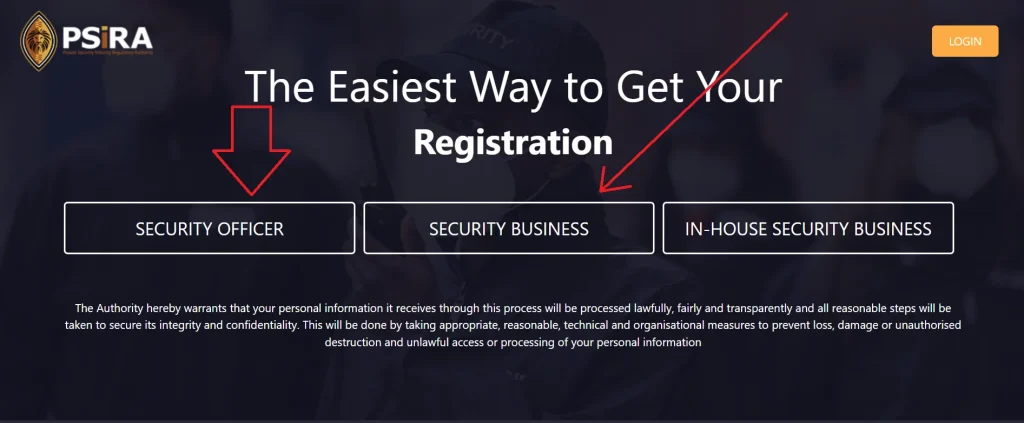
- Then click on “Login.”
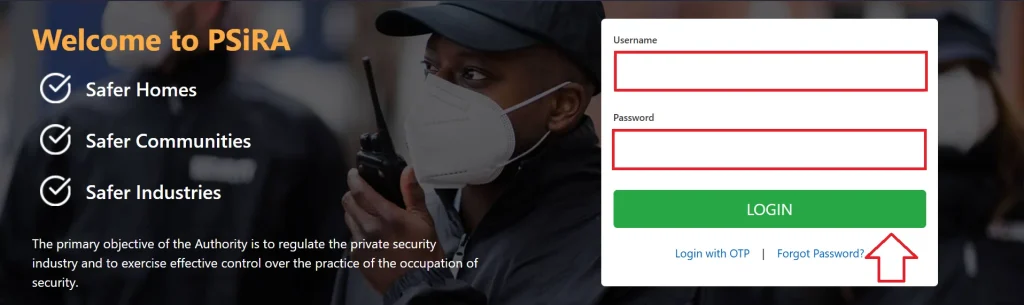
- Enter your “Username” and “Password.”
- Click the “Login” button to log in to your account.
PSiRA Login With OTP Easy Process
Many people search for the PSiRA Login with OTP process but struggle to find clear instructions. That’s why I created this simple step-by-step guide to help everyone log in quickly and securely.
- Visit the official PSiRA website.
- Click on “Login.”
- Click “Login with OTP” below the “Login” button.
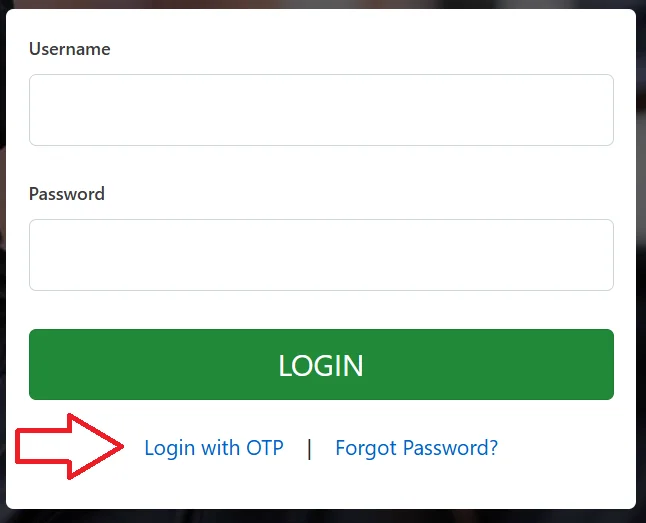
- Enter your registered “Mobile Number” and click the “Send OTP” button.
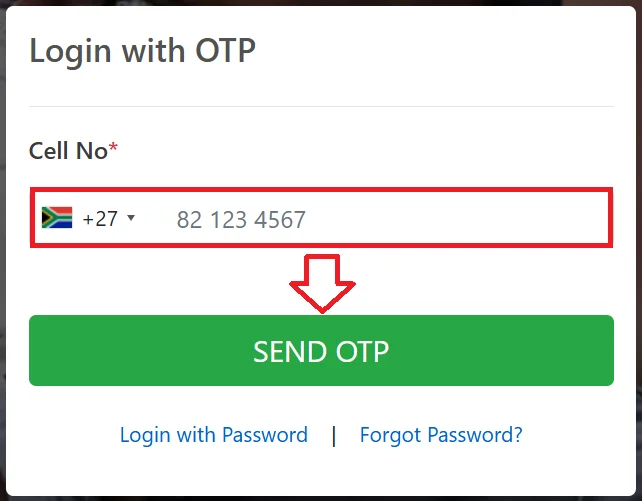
- Then your will receive “4-digit OTP.”
- Enter the OTP and click the “Login” button.
How to Log In to the PSiRA App
Logging in to the PSiRA app is just as simple. Follow the step-by-step instructions below to access your account securely.
- Download the official PSiRA App from the “Play store and App store.”
- Open the app on your device and click on “Login.”
- Type your “Username” and “Password” correctly.
- Hit the “Login” button.
How to Reset Your PSiRA Login Password
- Go to the official “PSiRA” website from here to reset your password.
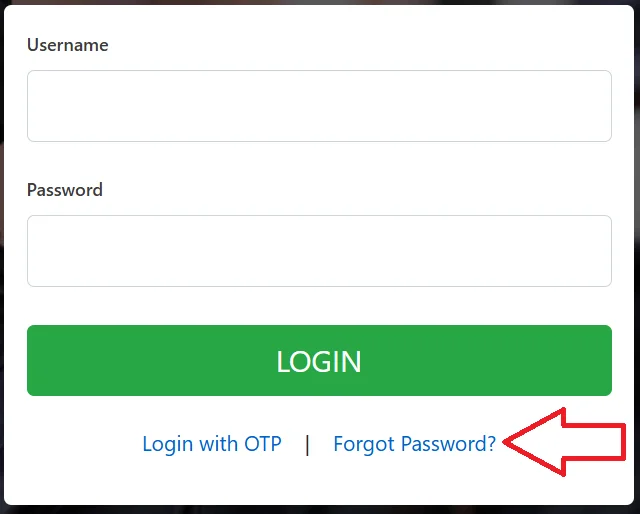
- Click on “Login” and then click on “Forgot Password.”
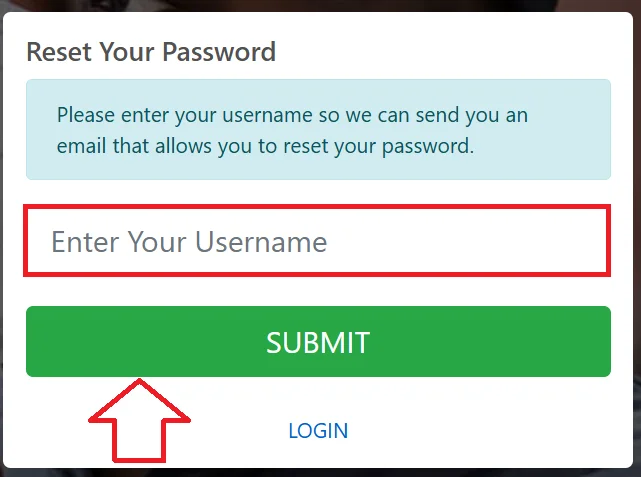
- Enter your “Username.”
- Click the “Submit” button to proceed.
- Then follow the further step to reset your PSiRA login profile password.
How to Change Your PSiRA Login Registered Mobile Number
- Visit the PSiRA Forgot Mobile Number page.
- Select your profile type (Security Officer or Security Business).
- Click Forgot Mobile Number.
- Enter your new mobile number without the leading zero (for example, enter 821234567 instead of 0821234567).
- Enter your PSiRA Number or South African ID Number, then click Send OTP.
- Check your mobile phone for the OTP verification code sent via SMS.
- Enter the OTP on the verification page.
- Verify your identity by providing the required information, such as your ID Number, Date of Birth, and Highest Security Grade.
- Click Submit to register your new mobile number.
PSiRA Login vs OTP Login (Difference)
PSiRA Login
- This is the main login method used to access your PSiRA account dashboard.
- You enter your registered mobile number or ID along with your password.
- It gives full access to profile details, registration status, certificates, and updates.
- Mainly used for regular account access and management.
OTP Login
- This is a one-time password (OTP) based login system for extra security.
- You receive a temporary code via SMS on your registered mobile number.
- You enter the OTP instead of a password to verify your identity.
- Mostly used for secure login, password reset, or sensitive actions.
6 PSiRA Login Security Tips
- Use a strong password that includes letters, numbers, and special characters.
- Never share your login details or OTP with anyone.
- Always use the official PSiRA login portal to access your account.
- Keep your registered mobile number updated to receive OTPs and account notifications.
- Log out after each session, especially when using a shared or public device.
- Change your password immediately if you suspect unauthorized access to your account.
Common PSiRA Login Problems & Fixes
| Problem | Cause | Fix / Solution |
|---|---|---|
| Incorrect ID Number | Wrong digits or typing mistake | Re-enter your 13-digit ID number carefully |
| Wrong Password | Forgotten or incorrect password | Use Forgot Password option to reset it |
| OTP Not Received | Network issue or wrong mobile number | Wait a few minutes, check signal, and request OTP again |
| Account Locked | Multiple failed login attempts | Wait 15–30 minutes or reset your password |
| Server Not Responding | High traffic or maintenance | Try again later or during off-peak hours |
| Page Not Loading | Slow internet or browser issue | Clear cache, refresh page, or switch browser |
FAQs About PSiRA Login
Conclusion
PSiRA Login is essential for managing your security profile, checking registration status, and accessing certificates online. By following the correct login steps, using OTP verification, and applying security tips, users can avoid common issues and ensure safe access. This guide helps you use the official PSiRA portal with confidence and ease.

zukiswa wanner 
I'm Zukiswa Wanner, the administrator of PSiRA Verification. I share accurate, practical guidance on PSiRA registration, verification, renewals, and compliance to help South Africans confidently access trusted information.