PSiRA App Download 2026 | Verify, Book & Manage Online


 July 13, 2026 6:34 am
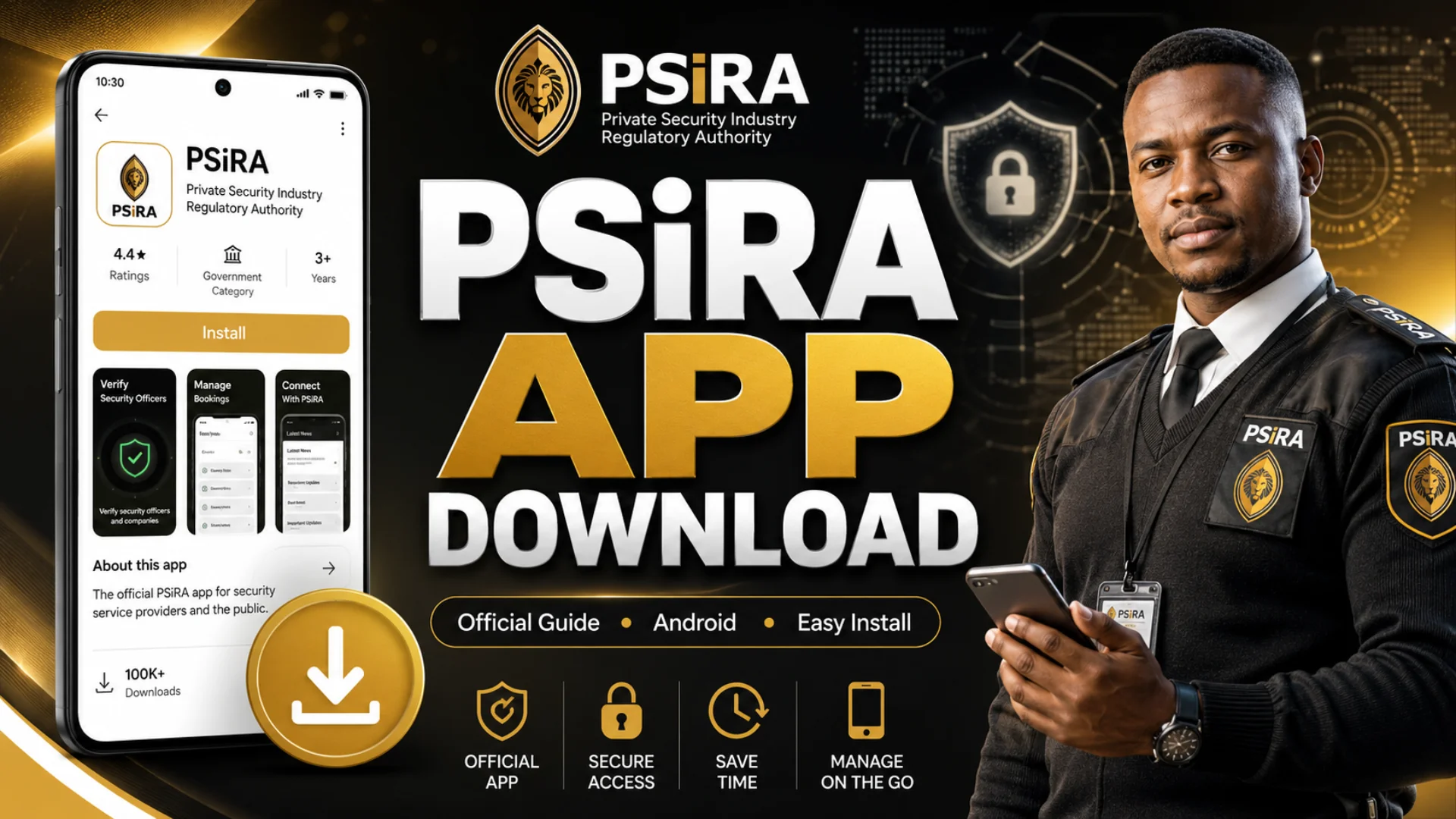
As someone who regularly helps South African security officers navigate PSiRA services, I’ve noticed that many people struggle to understand what the PSiRA app can actually do. From checking registration status to accessing digital services, the app makes several tasks faster and more convenient. In this guide, I’ll explain how to download the official PSiRA app, use its key features, troubleshoot common issues, and make the most of it for managing your PSiRA registration with confidence.
What Is the PSiRA App?
The PSiRA App is the official mobile application of South Africa’s Private Security Industry Regulatory Authority (PSiRA). It allows users to verify registered security officers and companies, book provider services, access digital certificates, and manage PSiRA-related tasks online. By connecting directly to the e-PSiRA Online Portal, the app provides a fast, secure, and convenient way for security professionals and the public to access essential PSiRA services anytime, anywhere.
Who Can Use the PSiRA App?
The PSiRA App is designed for private security providers, registered security officers, and members of the public in South Africa. It helps users manage security registrations, book PSiRA services, and verify whether a security officer or company is legally registered with PSiRA.
What Services Can You Access After Download PSiRA App?
- Verify Security Officers and Companies: Check whether a security officer, security company, or accredited training provider is actively registered with PSiRA before hiring them.
- Book PSiRA Branch Appointments: Schedule appointments through the online booking system instead of waiting in long queues.
- Claim and Manage Your Profile: Link your existing PSiRA profile to the app and manage your personal information.
- Register as a security officer or security business: Start or manage your registration through the digital platform.
- Track Your PSiRA Status: View the status of your registration, applications, or other PSiRA-related services.
- Access Digital PSiRA Services: Log in to your account and interact with various e-PSiRA services from your phone.
- Read Industry News and Notifications: Receive updates, announcements, and important notices from PSiRA.
- Find PSiRA Offices: Use the built-in office locator and navigation feature to locate the nearest branch.
- Learn About PSiRA Services: Access information on registration requirements, regulations, and available services.
- View Official Documents: Read the Private Security Industry Regulation Act and other official documents directly in the app.
- Use the Wage Simulator: Calculate estimated monthly wages according to the applicable sectoral determination.
- Contact PSiRA: Connect with PSiRA through its official communication channels, including social media.
PSiRA App Download Latest Version 2026
Download the official PSiRA App by following the steps below.
For Android Users
- Open the Play Store on your device.
- Type “PSiRA” into the search bar and tap Search.
- Look for the PSiRA app with the lion icon at the top of the results, then tap it to open the app page.
- Tap Install to download and install the app.
- Once installed, open the app from your home screen and complete your account registration.
For iPhone Users
- Open the App Store.
- In the search bar, type PSiRA and click on search.
- Click on “Install,” wait a few seconds, and enter your iCloud ID password.
- Click on “Submit.”
Download PSiRA App Download APK
If the Google Play Store isn’t available on your device or the PSiRA App isn’t compatible with your Android version, you can install it using the APK file.
- Search for PSiRA APK using your preferred search engine.
- Open a trusted website and read the installation instructions carefully.
- Tap the Download button below the app icon to download the APK file.
- If prompted, allow your browser to access your device’s storage.
- Once the download is complete, open the Files app and go to Internal Storage > Downloads.
- Locate and tap the PSiRA APK file.
- When prompted, tap Install and wait a few seconds for the installation to finish.
- After the installation is complete, tap Open or launch the app from your home screen to get started.
PSiRA App Download For PC
There is no official PSiRA app for Windows or Mac computers. Instead, you can access all e-PSiRA services directly through your web browser by logging in to the PSiRA Digital Services Portal, where you can manage registrations, bookings, and other online services without installing any software.
PSiRA App vs Website
Both the PSiRA App and the PSiRA Website provide access to official PSiRA services, but each is designed for different user needs. The app focuses on convenience for mobile users, while the website offers a more complete experience for managing detailed online services.
| Feature | PSiRA App | PSiRA Website |
|---|---|---|
| Device Support | Android and iPhone | Any device with a web browser |
| Access | Requires app installation | No installation required |
| Provider Verification | Yes | Yes |
| Online Appointment Booking | Yes | Yes |
| Profile Management | Available | Available with more account options |
| Digital Certificates | Supported | Supported |
| Notifications | Push notifications | No push notifications |
| Office Locator | Built-in navigation | Office information available |
| Registration Information | Yes | More detailed guidance and resources |
| Best For | Quick access while on the go | Full online services and detailed account management |
Features of the PSiRA App
- AI Chatbot Support: Get instant automated assistance for common questions, reducing wait times and improving customer support.
- Online Booking System: Book branch appointments online and manage your preferred time slots with ease.
- Provider Status Verification: Verify the registration status of security officers and security companies in real time.
- Profile Management: Claim your digital profile, track application progress, update personal details, and manage renewals.
- Industry Notifications: Receive important updates, announcements, and alerts from PSiRA directly through the app.
Common Problems and Solutions When Using the PSiRA App
Although the PSiRA App is designed to simplify access to services, users may occasionally encounter technical or account-related issues. Below are the most common problems and practical solutions.
| Problem | Possible Solution |
|---|---|
| Unable to log in | Double-check your ID number, username, or password. If you’ve forgotten your password, use the Forgot Password option to reset it. |
| OTP (verification code) not received | Wait a few minutes, verify your registered phone number, check your SMS signal, or request a new OTP. |
| App keeps crashing | Update the app to the latest version, restart your phone, or reinstall the application. |
| Provider status not showing | Ensure you’ve entered the correct registration or ID number. If the issue continues, try again later as the system may be temporarily unavailable. |
| Unable to claim your profile | Make sure your personal information matches the records held by PSiRA. Contact PSiRA support if verification fails. |
| Appointment booking unavailable | Check whether appointments are fully booked or temporarily suspended. Try selecting a different branch or another date. |
| Digital certificate not loading | Refresh the page, ensure you have a stable internet connection, and confirm your registration is active. |
| Slow app performance | Switch to a stronger Wi-Fi or mobile data connection, close background apps, and restart the app. |
| App not installing | Verify that your device meets the minimum Android or iOS requirements and that you have enough storage space. |
| General technical errors | Clear the app cache, install the latest update, or contact PSiRA customer support if the problem persists. |
Frequently Asked Questions
How to book an appointment at PSiRA app?
You can book a PSiRA branch appointment through the e-PSiRA App or the online portal without visiting a branch first. After signing in to your account, open the Bookings section and select New Booking to begin.
Follow these steps to schedule your appointment:
- Open the e-PSiRA App and sign in to your account.
- Tap the Bookings tab and select New Booking.
- Choose the service you need, such as registration, renewal, or ID card collection.
- Select your preferred PSiRA branch, available date, and time slot.
- Click Send OTP to receive a one-time password (OTP) on your registered mobile number or email address.
- Enter the OTP to verify your booking and submit your appointment request.
- Once confirmed, save your booking details or confirmation message for your branch visit.
Is the PSiRA App free to download?
Yes. The PSiRA App is completely free to download and use. However, you may need an internet connection to access its online services.
What should I do if I don’t receive the OTP?
First, check that your registered phone number or email address is correct. If the OTP still doesn’t arrive, wait a few minutes and request a new OTP before contacting PSiRA support.
Conclusion
The PSiRA App is a practical tool that makes managing your PSiRA services easier, whether you need to verify registration, book appointments, or access digital features. Keep the app updated, use only official download sources, and follow the steps in this guide to complete your PSiRA tasks quickly, securely, and efficiently.
zukiswa wanner
I'm Zukiswa Wanner, the administrator of PSiRA Verification. I share accurate, practical guidance on PSiRA registration, verification, renewals, and compliance to help South Africans confidently access trusted information.